Free · No sign-up · Runs in your browser
Add a watermark to your image.
Keep the image yours.
Drop a photo, drag your text or logo exactly where you want it, and export. Nothing is uploaded to a server, and nothing of ours ends up on your file.
Restore your previous watermark setup? Your photos were never saved — only the marks you made.
Batch — 0 images
One watermark, every imageAdvertisement
How to watermark an image
-
01
Drop your image in
JPG, PNG, WebP or GIF. Paste straight from your clipboard, or add up to 60 photos at once for a batch.
-
02
Add your mark
Type your text or drop in a logo, then drag it anywhere, resize from a corner, and rotate from the handle above it. Or tile it across the whole picture.
-
03
Export your images
Download one image, or the entire batch as a ZIP, as JPG, PNG or WebP at whatever quality you choose.
Position it properly, not into a preset corner
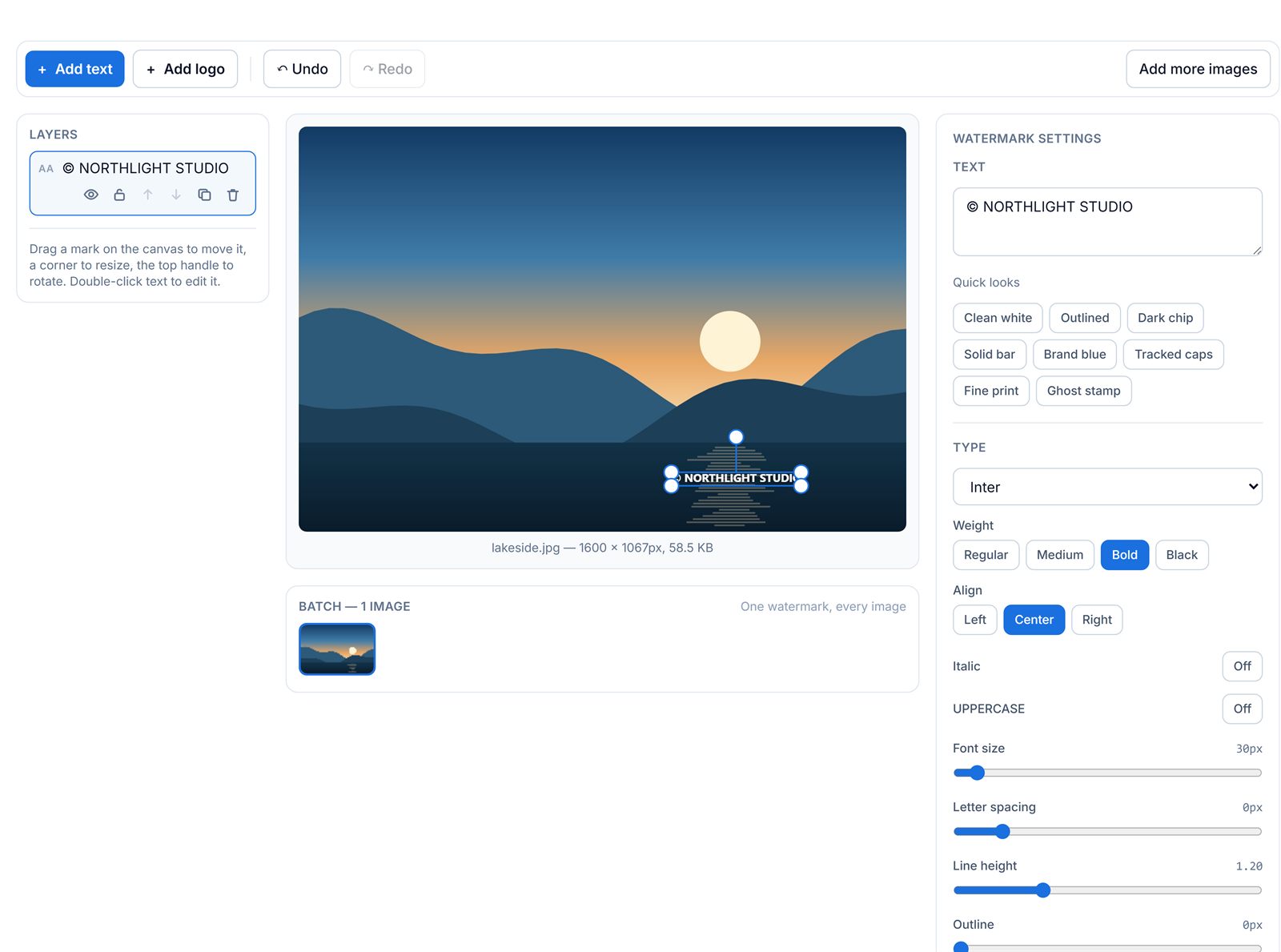
Most free watermark tools give you nine fixed positions and a size slider. That is fine until your subject is standing in the bottom-right corner. Here the mark is a real object: drag it anywhere, including partly off the edge, rotate it to any angle, and stack as many as you need — a logo in one corner, a URL in the other, a faint tiled pattern across the middle. The nine-point grid is still there as a shortcut, and it just writes the same position any drag would.
One setup, a whole folder of photos
A watermark is stored as a proportion of the frame rather than as a pixel coordinate, which is what makes a batch work when the photos are not all the same size. Place a mark 6% in from the bottom-right on a 4000 × 3000 original, and it lands 6% in from the bottom-right on the 1080 × 1080 crop next to it — at a proportional size, not a fixed pixel one. Set it up once and export the ZIP.
What’s different here
Watermarking is the one job where a tool’s own branding on your export defeats the purpose.
| Typical free editor | This tool | |
|---|---|---|
| Adds its own logo to your export | Often, on the free plan | Never |
| Uploads your file to a server | Usually | No — rendered on your device |
| Account required | Often | No |
| Export limit or paid tier | Common | None |
| Free positioning and rotation | Often nine fixed spots | Anywhere, any angle |
Last reviewed: August 2026. Based on the published free tiers of widely-used online watermark editors as of August 2026. Free-tier terms change — check the current pricing page of any tool you are comparing.
Everything in the editor
Text watermarks
Thirteen font families, weight, italics, uppercase, letter spacing, line height, colour, outline, shadow and a box behind the text — plus eight one-click looks.
Logo watermarks
Drop in a PNG, JPG or WebP. Transparent PNGs work exactly as you would hope, and the checkerboard behind the canvas shows you where the transparency is.
Free positioning
Drag, resize from any corner, rotate with snapping at 15° steps, and nudge with the arrow keys. Marks snap to the centre and margin lines as you drag.
Tiled patterns
Repeat a mark across the whole picture with independent horizontal and vertical spacing, its own rotation, and alternate-row offset so it does not read as a table.
Layers
Stack as many marks as you like. Hide, lock, duplicate, reorder or delete each one. Locking is how you stop nudging a mark you have already placed.
Undo and redo
Sixty steps of history, with Ctrl+Z and Ctrl+Shift+Z. A whole drag is one step, not two hundred, and selecting a layer is not a step at all.
Batch processing
Up to 60 images at once. Reorder them, drop any of them, preview any of them, then export the lot as a ZIP with real progress and a working cancel button.
Touch and pinch
One finger drags a mark, two fingers resize and rotate it. On a phone the panels become tabs under the canvas instead of a squeezed desktop layout.
Nothing leaves the tab
Rendering happens on a canvas in this page. Your watermark setup is remembered locally so a refresh does not lose it — your photos deliberately are not.
Advertisement
Image watermark FAQ
Do my photos get uploaded to a server?
No. Watermarking runs entirely in your browser using canvas rendering. Your images stay on your device — there is no upload step, no queue and no server-side copy.
Does this add its own logo to my image?
No. Only the text or logo watermark you add appears on your export. Nothing of ours is stamped on your file, on any plan, because there are no plans.
Can I watermark a batch of photos at once?
Yes. Set up your watermark once, then export the whole batch as a ZIP. Because the watermark is positioned as a proportion of the frame rather than in pixels, one setup lands in the same relative place on photos of different sizes.
How do I add a transparent watermark to a photo?
Drop in a transparent PNG logo, or add a text mark, then lower the Opacity slider. Around 25 to 40 percent is readable without competing with the picture. A tiled mark at low opacity is harder to crop out than a single corner mark.
Which format should I export?
JPG for photographs you are publishing, WebP if you want the same quality in a smaller file and your destination accepts it, and PNG when the image itself has transparency you need to keep. PNG files will be considerably larger.
Will watermarking reduce my image quality?
The watermark itself is drawn at full resolution, so it costs nothing in sharpness. Re-encoding a JPG does lose a little, which is why the quality slider defaults to 90 — high enough that the loss is invisible at normal viewing sizes.
Can this tool remove a watermark instead of adding one?
No — this tool is for adding your own watermark. Removing someone else’s watermark is a different job and, if the content is not yours, usually a copyright problem.
Does it work on a phone?
Yes. Drag with one finger to move a mark and pinch with two to resize and rotate it. The settings, layers and export panels become tabs under the canvas rather than a shrunken version of the desktop sidebars.
Need to watermark a video instead? The video watermark tool uses the same editor and adds a timeline, so you can decide exactly when your mark appears and disappears.
Advertisement
Work with many images at once
Process hundreds of images in a single run — all in your browser. Download results as a ZIP.