Como redimensionar uma imagem sem perder qualidade não é apenas uma alteração visual. É um processo para preparar uma imagem para um destino específico mantendo controle sobre qualidade, tamanho, formato e privacidade.
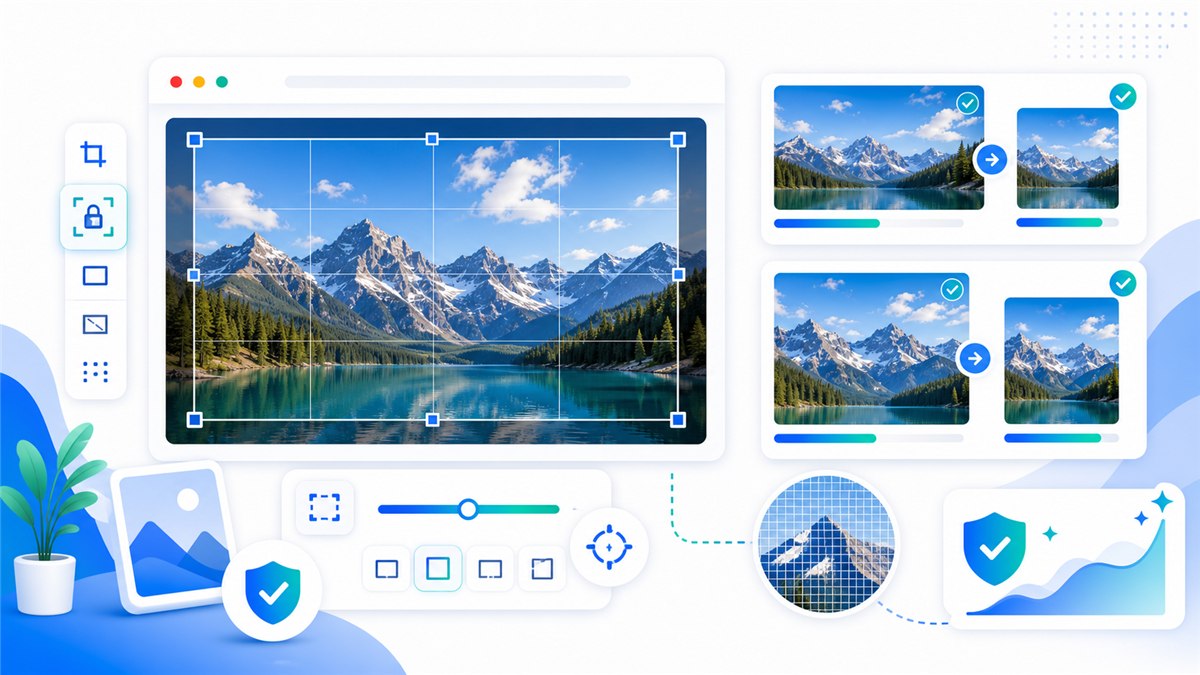
Introdução
Com Resizo Image Resizer, comece pelo objetivo: site, formulário, email, ecommerce, rede social ou documento sensível. Depois escolha dimensões, formato e qualidade.
O que é este tema?
Redimensionar uma imagem sem perder qualidade significa alterar as dimensões em pixels da imagem para um destino específico — o herói de um site, uma galeria de produtos, um anexo de e-mail ou um formulário de upload — mantendo o resultado visivelmente nítido. A qualidade se preserva quando três regras são seguidas: reduza a partir do original em vez de ampliar, mantenha a proporção para que nada fique esticado e exporte uma única vez em um formato adequado ao conteúdo, ou seja, JPEG ou WebP para fotografias e PNG para gráficos e texto. Todo o fluxo se resume a quatro decisões: dimensões, formato, qualidade e privacidade. Os navegadores modernos conseguem cuidar das quatro localmente. A API Canvas, documentada pela MDN, exporta PNG em todos os navegadores e JPEG e WebP na maioria — é por isso que uma ferramenta no navegador como o redimensionador de imagens Resizo consegue reduzir uma foto de celular de 5 MB inteiramente no seu próprio dispositivo, sem upload e sem ida e volta ao servidor.
Por que isso importa
Acertar no redimensionamento importa porque os erros custam caro e passam despercebidos com facilidade. Uma foto de celular de 5 MB enviada direto para um site deixa cada visualização de página mais lenta; um documento de identidade comprimido demais pode ficar com o texto ilegível justamente para o formulário que o exigiu; recortes de produto desalinhados fazem o catálogo inteiro parecer menos confiável. A causa raiz costuma ser a mesma: a imagem foi exportada nas dimensões erradas ou recomprimida mais vezes do que o necessário, e cada exportação com perdas adicional acumula mais dano no arquivo. A correção é procedimental, não artística — redimensione a partir do original, mantenha a proporção travada, ajuste o tamanho de saída ao tamanho real de exibição e exporte exatamente uma vez em um formato adequado. Como o redimensionador Resizo processa os arquivos localmente no navegador em vez de enviá-los, imagens sensíveis como documentos, trabalhos de clientes e fotos de produtos ainda não publicadas nunca saem do seu dispositivo.
Principais benefícios
- You reduce wasted upload time because quality-safe image resizing happens before the file reaches a website, form, or CMS.
- You make the output predictable: exact dimensions, sensible file size, and a format that fits the destination.
- You protect the original image by exporting a separate optimized copy instead of editing the only version you have.
- You avoid common quality damage such as stretched aspect ratios, repeated compression, and unnecessary upscaling.
- You create images that are easier for users to download and easier for search engines to understand when combined with good filenames and alt text.
Guia passo a passo
- Open Resizo Image Resizer and select the original image from your device.
- Identify the real target: website speed, email attachment limit, form upload, profile photo, or social image size.
- Set the pixel dimensions first. Reducing a 4000 px phone photo to 1600 px usually saves far more than quality changes alone.
- Keep the aspect ratio locked unless you are intentionally cropping to a platform size.
- Choose WebP for web use, JPEG for general photo compatibility, and PNG for transparency or screenshots.
- Start with quality around 75-85 for photos, then preview details before downloading.
Boas práticas
Erros comuns incluem enviar fotos privadas sem verificar os termos, comprimir demais, forçar medidas que distorcem e apagar o original cedo demais.
- Start from the highest-quality original you have. Resizing a bad copy usually amplifies blur and compression blocks.
- Set dimensions before quality. Pixel count is usually the biggest driver of file size.
- Use one export pass. Reopening and recompressing the same output again and again causes visible damage.
- Keep a small test set with different image types: portrait, product, screenshot, dark photo, and transparent graphic.
- Use descriptive names such as resized-passport-photo.jpg or product-main-1200.webp instead of IMG_4829-final-final.jpg.
Erros comuns
Como dica avançada, crie presets de equipe com largura final, formato, qualidade, padrão de nome e checklist de revisão. Isso mantém os arquivos consistentes.
- Uploading sensitive photos to a tool before checking how the service processes and stores files.
- Forcing a fixed width and height that distorts people, products, logos, or documents.
- Upscaling a small source image and expecting true detail to appear. Upscaling can enlarge pixels, but it cannot recreate missing information.
- Using PNG for every photo. PNG is excellent for transparency and sharp graphics, but photos often become unnecessarily large.
- Ignoring the final use case. A print-quality master and a fast web preview are different files with different requirements.
Dicas avançadas
Exemplo real: uma foto de celular com 4 MB pode ficar abaixo de 700 KB ao ser reduzida primeiro para 1600 px de largura e depois exportada com qualidade equilibrada.
- Create two exports for important web assets: a 1600 px master for large screens and a smaller 800 px version for thumbnails or cards.
- For ecommerce, make a consistent crop and background part of the process before compression. Visual consistency often matters as much as file size.
- For screenshots, test PNG and WebP. Text-heavy screenshots can look worse if compressed like ordinary photos.
- For forms with strict KB limits, resize dimensions first, then lower quality gradually in small steps.
- For private workflows, load the tool, disconnect from the internet, and complete local processing after the page is open.
Exemplos reais e casos de uso
| Scenario | Problem | Workflow |
|---|---|---|
| Job application | A phone photo is 5.8 MB but the portal allows 500 KB. | Resize the longest side to 1200 px, export JPEG at 78 quality, and check facial detail. |
| Online store | Thirty product images are different sizes and too heavy. | Batch resize to a consistent square canvas, export WebP, and keep originals archived. |
| Blog publishing | A hero image is 4032 px wide and slows the page. | Resize to 1600 px wide, export WebP, and add a descriptive filename and alt text. |
| Before | Action | Result | Why |
|---|---|---|---|
| Phone photo, 4032 x 3024, 4.8 MB | Resize to 1600 px wide and export WebP/JPEG at 80 quality | Often 250-700 KB | Best for blogs, portfolios, and basic web uploads |
| PNG screenshot, 2880 px wide, 2.4 MB | Resize to display size and test PNG vs WebP | Often 300-900 KB | Keeps UI text readable while removing oversized pixels |
| Product image set, mixed dimensions | Batch resize to consistent canvas and rename files | Consistent gallery assets | Improves UX and avoids layout jumps |
Fontes externas recomendadas
- MDN HTMLCanvasElement.toBlob - Explains how browser canvas exports image blobs, formats, and quality settings.
- web.dev Learn Images - A practical reference for web image formats, responsive images, and performance.
- Google Image SEO Best Practices - Google guidance for discoverable images, alt text, structured data, and fast image pages.
Perguntas frequentes
What is How to Resize an Image Without Losing Quality?
How to Resize an Image Without Losing Quality is a practical workflow for resize an image while avoiding blur, pixelation, distortion, and bad compression. The goal is to create a smaller or better-fitted image while preserving the details that matter for the destination.
Can I do this with Resizo Image Resizer?
Yes. Resizo Image Resizer is designed for this exact workflow. You can choose dimensions, format, and quality settings, then download an optimized copy without changing the original.
Does Resizo upload my images?
For supported Resizo browser tools, the image is processed locally in your browser. That means the original file stays on your device during resizing, compression, conversion, and preview.
What format should I choose?
Use WebP for most modern web pages, JPEG for broad photo compatibility, and PNG when you need transparency, sharp UI graphics, or exact screenshot detail.
Will reducing file size always reduce quality?
Not always in a visible way. If you reduce unnecessary pixels first and use sensible quality settings, the file can become much smaller while looking the same at normal viewing size.
What quality setting is best?
For photos, start around 75-85 and inspect the result. For screenshots or graphics, test PNG and WebP because ordinary photo compression can make text and edges look rough.
Can I process many images at once?
Yes, especially for batch workflows. The practical limit depends on your browser and device memory because local tools use your own machine rather than a server queue.
Should I delete the original after exporting?
No. Keep the original until the final image has been uploaded, reviewed, and approved. Store optimized exports in a separate folder so you can regenerate them later.
How do I avoid blurry output?
Do not upscale small files, keep aspect ratio locked, export from the original, and check the result at 100 percent zoom before using it in production.
Is this good for SEO?
Yes when combined with fast file sizes, descriptive filenames, useful alt text, proper HTML image elements, and relevant page content near the image.
Conclusão
Conclusão: defina o uso final, proteja o original e revise o resultado. Resizo torna esse fluxo rápido, claro e mais privado.
Como redimensionar uma imagem sem perder qualidade
Guia prático da Resizo para como redimensionar uma imagem sem perder qualidade, com passos, erros comuns e fluxo sem upload.
Experimentar Resizo grátis