Cómo redimensionar una imagen sin perder calidad no es solo un cambio visual. Es una forma de preparar una imagen para un destino concreto sin perder control sobre calidad, tamaño, formato y privacidad.
Introducción
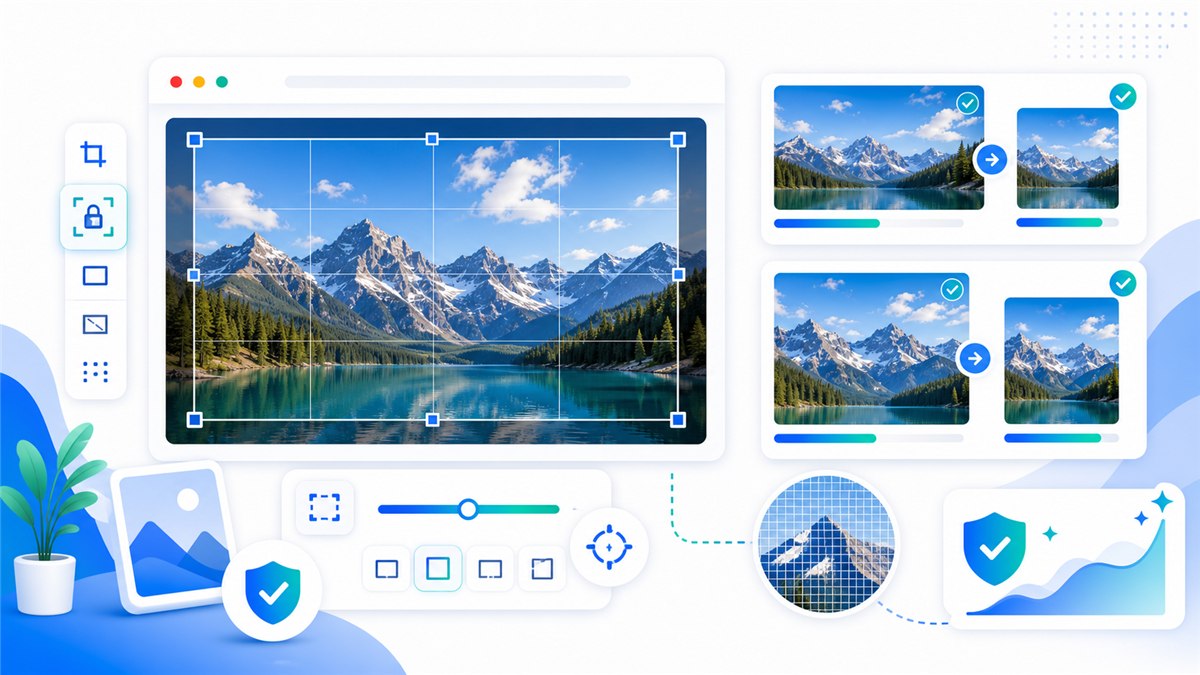
Con Resizo Image Resizer, el flujo recomendado empieza por el objetivo: web, formulario, correo, ecommerce, redes sociales o documento privado. Después se eligen dimensiones, formato y calidad.
Qué es este tema
Redimensionar una imagen sin perder calidad significa cambiar las dimensiones en píxeles de la imagen para un destino concreto — la cabecera de una web, una galería de producto, un adjunto de correo o un formulario de subida — manteniendo un resultado visiblemente nítido. La calidad se conserva cuando se siguen tres reglas: reducir a partir del original en lugar de ampliar, conservar la relación de aspecto para que nada se deforme y exportar una sola vez en un formato adecuado al contenido, es decir, JPEG o WebP para fotografías y PNG para gráficos y texto. Todo el flujo se reduce a cuatro decisiones: dimensiones, formato, calidad y privacidad. Los navegadores modernos pueden resolver las cuatro localmente. La API Canvas, documentada por MDN, exporta PNG en todos los navegadores y JPEG y WebP en la mayoría, y por eso una herramienta en el navegador como el redimensionador de imágenes Resizo puede reducir una foto de móvil de 5 MB por completo en tu propio dispositivo, sin subida y sin pasar por un servidor.
Por qué importa
Hacer bien el redimensionado importa porque los errores son caros y fáciles de pasar por alto. Una foto de móvil de 5 MB subida directamente a una web ralentiza cada visita; un documento de identidad escaneado y comprimido en exceso puede dejar el texto ilegible justo para el formulario que lo exigía; unos recortes de producto desiguales hacen que todo el catálogo parezca menos fiable. La causa raíz suele ser la misma: la imagen se exportó con las dimensiones en píxeles equivocadas o se recomprimió más veces de las necesarias, y cada exportación con pérdida adicional acumula más daño en el archivo. La solución es procedimental, no artística: redimensiona desde el original, mantén bloqueada la relación de aspecto, ajusta el tamaño de salida al tamaño real de visualización y exporta exactamente una vez en un formato adecuado. Como el redimensionador de Resizo procesa los archivos localmente en el navegador en lugar de subirlos, las imágenes sensibles — documentos, trabajos de clientes y fotos de producto sin publicar — nunca salen de tu dispositivo.
Beneficios clave
- You reduce wasted upload time because quality-safe image resizing happens before the file reaches a website, form, or CMS.
- You make the output predictable: exact dimensions, sensible file size, and a format that fits the destination.
- You protect the original image by exporting a separate optimized copy instead of editing the only version you have.
- You avoid common quality damage such as stretched aspect ratios, repeated compression, and unnecessary upscaling.
- You create images that are easier for users to download and easier for search engines to understand when combined with good filenames and alt text.
Guía paso a paso
- Open Resizo Image Resizer and select the original image from your device.
- Identify the real target: website speed, email attachment limit, form upload, profile photo, or social image size.
- Set the pixel dimensions first. Reducing a 4000 px phone photo to 1600 px usually saves far more than quality changes alone.
- Keep the aspect ratio locked unless you are intentionally cropping to a platform size.
- Choose WebP for web use, JPEG for general photo compatibility, and PNG for transparency or screenshots.
- Start with quality around 75-85 for photos, then preview details before downloading.
Mejores prácticas
Los errores más frecuentes son subir fotos privadas sin leer la política del servicio, comprimir demasiado, forzar medidas que deforman la imagen y borrar el original antes de revisar el resultado.
- Start from the highest-quality original you have. Resizing a bad copy usually amplifies blur and compression blocks.
- Set dimensions before quality. Pixel count is usually the biggest driver of file size.
- Use one export pass. Reopening and recompressing the same output again and again causes visible damage.
- Keep a small test set with different image types: portrait, product, screenshot, dark photo, and transparent graphic.
- Use descriptive names such as resized-passport-photo.jpg or product-main-1200.webp instead of IMG_4829-final-final.jpg.
Errores comunes
Como práctica avanzada, crea presets de equipo: ancho final, formato, calidad, patrón de nombre y checklist de revisión. Así cada persona exporta imágenes consistentes.
- Uploading sensitive photos to a tool before checking how the service processes and stores files.
- Forcing a fixed width and height that distorts people, products, logos, or documents.
- Upscaling a small source image and expecting true detail to appear. Upscaling can enlarge pixels, but it cannot recreate missing information.
- Using PNG for every photo. PNG is excellent for transparency and sharp graphics, but photos often become unnecessarily large.
- Ignoring the final use case. A print-quality master and a fast web preview are different files with different requirements.
Consejos avanzados
Un ejemplo real: una foto de móvil de 4 MB puede reducirse a menos de 700 KB si primero se baja a 1600 px de ancho y luego se exporta con calidad equilibrada.
- Create two exports for important web assets: a 1600 px master for large screens and a smaller 800 px version for thumbnails or cards.
- For ecommerce, make a consistent crop and background part of the process before compression. Visual consistency often matters as much as file size.
- For screenshots, test PNG and WebP. Text-heavy screenshots can look worse if compressed like ordinary photos.
- For forms with strict KB limits, resize dimensions first, then lower quality gradually in small steps.
- For private workflows, load the tool, disconnect from the internet, and complete local processing after the page is open.
Ejemplos reales y casos de uso
| Scenario | Problem | Workflow |
|---|---|---|
| Job application | A phone photo is 5.8 MB but the portal allows 500 KB. | Resize the longest side to 1200 px, export JPEG at 78 quality, and check facial detail. |
| Online store | Thirty product images are different sizes and too heavy. | Batch resize to a consistent square canvas, export WebP, and keep originals archived. |
| Blog publishing | A hero image is 4032 px wide and slows the page. | Resize to 1600 px wide, export WebP, and add a descriptive filename and alt text. |
| Before | Action | Result | Why |
|---|---|---|---|
| Phone photo, 4032 x 3024, 4.8 MB | Resize to 1600 px wide and export WebP/JPEG at 80 quality | Often 250-700 KB | Best for blogs, portfolios, and basic web uploads |
| PNG screenshot, 2880 px wide, 2.4 MB | Resize to display size and test PNG vs WebP | Often 300-900 KB | Keeps UI text readable while removing oversized pixels |
| Product image set, mixed dimensions | Batch resize to consistent canvas and rename files | Consistent gallery assets | Improves UX and avoids layout jumps |
Fuentes externas recomendadas
- MDN HTMLCanvasElement.toBlob - Explains how browser canvas exports image blobs, formats, and quality settings.
- web.dev Learn Images - A practical reference for web image formats, responsive images, and performance.
- Google Image SEO Best Practices - Google guidance for discoverable images, alt text, structured data, and fast image pages.
Preguntas frecuentes
What is How to Resize an Image Without Losing Quality?
How to Resize an Image Without Losing Quality is a practical workflow for resize an image while avoiding blur, pixelation, distortion, and bad compression. The goal is to create a smaller or better-fitted image while preserving the details that matter for the destination.
Can I do this with Resizo Image Resizer?
Yes. Resizo Image Resizer is designed for this exact workflow. You can choose dimensions, format, and quality settings, then download an optimized copy without changing the original.
Does Resizo upload my images?
For supported Resizo browser tools, the image is processed locally in your browser. That means the original file stays on your device during resizing, compression, conversion, and preview.
What format should I choose?
Use WebP for most modern web pages, JPEG for broad photo compatibility, and PNG when you need transparency, sharp UI graphics, or exact screenshot detail.
Will reducing file size always reduce quality?
Not always in a visible way. If you reduce unnecessary pixels first and use sensible quality settings, the file can become much smaller while looking the same at normal viewing size.
What quality setting is best?
For photos, start around 75-85 and inspect the result. For screenshots or graphics, test PNG and WebP because ordinary photo compression can make text and edges look rough.
Can I process many images at once?
Yes, especially for batch workflows. The practical limit depends on your browser and device memory because local tools use your own machine rather than a server queue.
Should I delete the original after exporting?
No. Keep the original until the final image has been uploaded, reviewed, and approved. Store optimized exports in a separate folder so you can regenerate them later.
How do I avoid blurry output?
Do not upscale small files, keep aspect ratio locked, export from the original, and check the result at 100 percent zoom before using it in production.
Is this good for SEO?
Yes when combined with fast file sizes, descriptive filenames, useful alt text, proper HTML image elements, and relevant page content near the image.
Conclusión
La conclusión es sencilla: define el uso final, protege el original y prueba el resultado antes de publicarlo. Resizo ayuda a resolver este trabajo de forma rápida y privada.
Cómo redimensionar una imagen sin perder calidad
Guía práctica de Resizo para cómo redimensionar una imagen sin perder calidad, con pasos, errores comunes y flujo sin subir archivos.
Probar Resizo gratis