Cara mengurangi ukuran file foto tanpa merusak tampilannya bukan sekadar mengubah tampilan gambar. Ini adalah proses menyiapkan file untuk tujuan tertentu sambil menjaga kualitas, ukuran, format, dan privasi.
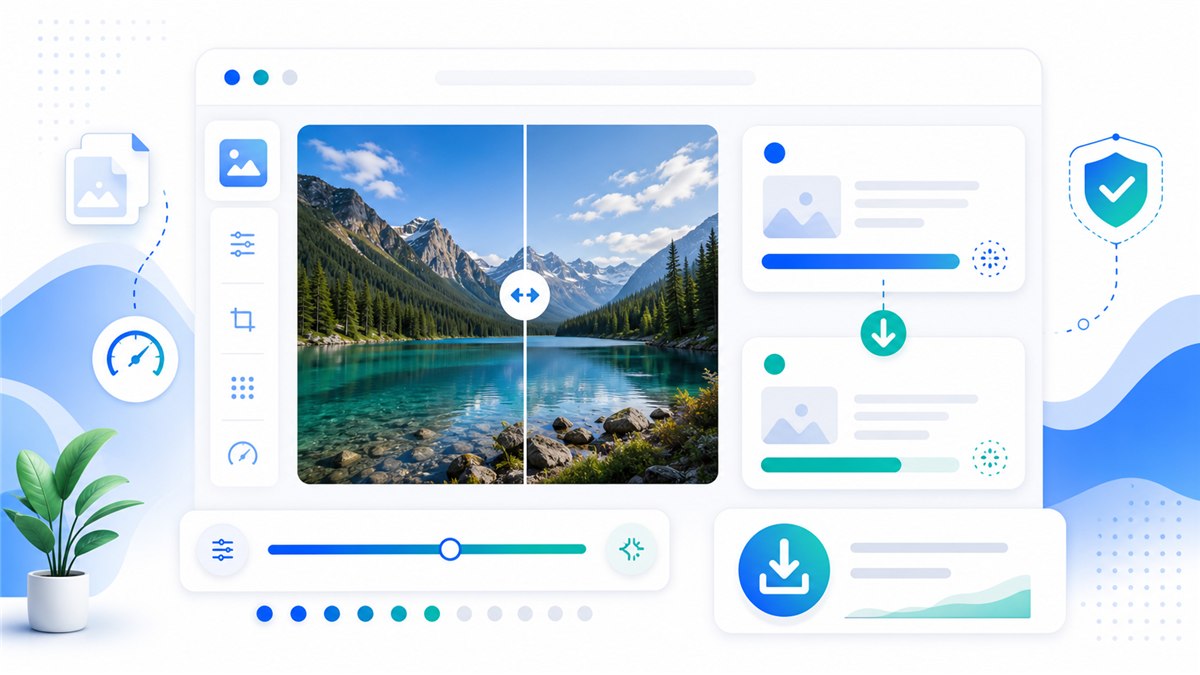
Pendahuluan
Dengan Resizo Photo File Size Reducer, mulai dari tujuan: website, formulir, email, ecommerce, media sosial, atau dokumen sensitif. Setelah itu pilih dimensi, format, dan kualitas.
Apa itu topik ini?
Mengurangi ukuran file foto tanpa membuatnya tampak buruk berarti memangkas jumlah kilobyte yang ditempati gambar sambil menjaganya tetap terlihat bersih pada ukuran tampilan sebenarnya. Dua tuas melakukan hampir semua pekerjaannya: dimensi piksel dan format ekspor. Dimensi paling berpengaruh — foto ponsel selebar 4000 px yang ditampilkan pada 800 px membawa jauh lebih banyak data daripada yang akan pernah ditampilkan layar mana pun, sehingga memperkecilnya membuang kelebihan itu tanpa terlihat. Format menuntaskan sisanya: mengekspor sebagai JPEG atau WebP menerapkan kompresi lossy yang memang dirancang untuk foto, dan WebP biasanya menghasilkan file lebih kecil daripada JPEG pada kualitas visual serupa. Foto ponsel 5 MB yang ditangani dengan cara ini umumnya berakhir di beberapa ratus kilobyte tanpa perbedaan yang terlihat pada ukuran tampilan normal. Pengubah ukuran foto Resizo menjalankan kedua langkah itu di browser menggunakan Canvas API, sehingga foto asli tidak pernah perlu diunggah ke server.
Mengapa penting
Ukuran file foto itu penting karena gambar yang terlalu besar gagal secara diam-diam dan menimbulkan kerugian nyata. Foto ponsel 5 MB yang disematkan di halaman web memperlambat setiap kunjungan; email dengan beberapa lampiran yang tidak dikompresi bisa terpental oleh batas penyedia layanan; formulir unggah dengan batas ukuran yang ketat langsung menolak file tersebut. Koreksi berlebihan sama merusaknya — kompresi foto yang terlalu agresif membuat wajah tampak seperti lilin, teks tidak terbaca, dan grafik brand terlihat tidak profesional. Pendekatan yang seimbang bekerja lewat mekanisme, bukan tebakan: samakan dimensi piksel dengan ukuran tampilan sebenarnya, ekspor satu kali sebagai JPEG atau WebP pada pengaturan kualitas yang wajar, dan periksa hasilnya sebelum dikirim atau dipublikasikan. Dengan cara ini, sebagian besar foto menyusut dari ukuran megabyte menjadi beberapa ratus kilobyte tanpa kehilangan kualitas yang terlihat. Resizo menjalankan seluruh alur kerja ini secara lokal di browser, sehingga foto pribadi menjadi lebih kecil tanpa pernah diunggah ke mana pun.
Manfaat utama
- You reduce wasted upload time because photo file size reduction happens before the file reaches a website, form, or CMS.
- You make the output predictable: exact dimensions, sensible file size, and a format that fits the destination.
- You protect the original image by exporting a separate optimized copy instead of editing the only version you have.
- You avoid common quality damage such as stretched aspect ratios, repeated compression, and unnecessary upscaling.
- You create images that are easier for users to download and easier for search engines to understand when combined with good filenames and alt text.
Panduan langkah demi langkah
- Open Resizo Photo File Size Reducer and select the original image from your device.
- Identify the real target: website speed, email attachment limit, form upload, profile photo, or social image size.
- Set the pixel dimensions first. Reducing a 4000 px phone photo to 1600 px usually saves far more than quality changes alone.
- Keep the aspect ratio locked unless you are intentionally cropping to a platform size.
- Choose WebP for web use, JPEG for general photo compatibility, and PNG for transparency or screenshots.
- Start with quality around 75-85 for photos, then preview details before downloading.
Praktik terbaik
Kesalahan umum adalah mengunggah foto sensitif tanpa membaca ketentuan, kompresi berlebihan, memaksa ukuran yang merusak proporsi, dan menghapus file asli terlalu cepat.
- Start from the highest-quality original you have. Resizing a bad copy usually amplifies blur and compression blocks.
- Set dimensions before quality. Pixel count is usually the biggest driver of file size.
- Use one export pass. Reopening and recompressing the same output again and again causes visible damage.
- Keep a small test set with different image types: portrait, product, screenshot, dark photo, and transparent graphic.
- Use descriptive names such as resized-passport-photo.jpg or product-main-1200.webp instead of IMG_4829-final-final.jpg.
Kesalahan umum
Untuk tim, buat preset berisi lebar akhir, format, kualitas, pola nama file, dan checklist pengecekan. Hasil ekspor akan lebih konsisten.
- Uploading sensitive photos to a tool before checking how the service processes and stores files.
- Forcing a fixed width and height that distorts people, products, logos, or documents.
- Upscaling a small source image and expecting true detail to appear. Upscaling can enlarge pixels, but it cannot recreate missing information.
- Using PNG for every photo. PNG is excellent for transparency and sharp graphics, but photos often become unnecessarily large.
- Ignoring the final use case. A print-quality master and a fast web preview are different files with different requirements.
Tips lanjutan
Contoh nyata: foto ponsel 4 MB sering bisa turun di bawah 700 KB jika lebih dulu di-resize ke lebar 1600 px lalu diekspor dengan kualitas seimbang.
- Create two exports for important web assets: a 1600 px master for large screens and a smaller 800 px version for thumbnails or cards.
- For ecommerce, make a consistent crop and background part of the process before compression. Visual consistency often matters as much as file size.
- For screenshots, test PNG and WebP. Text-heavy screenshots can look worse if compressed like ordinary photos.
- For forms with strict KB limits, resize dimensions first, then lower quality gradually in small steps.
- For private workflows, load the tool, disconnect from the internet, and complete local processing after the page is open.
Contoh nyata dan kasus penggunaan
| Scenario | Problem | Workflow |
|---|---|---|
| Job application | A phone photo is 5.8 MB but the portal allows 500 KB. | Resize the longest side to 1200 px, export JPEG at 78 quality, and check facial detail. |
| Online store | Thirty product images are different sizes and too heavy. | Batch resize to a consistent square canvas, export WebP, and keep originals archived. |
| Blog publishing | A hero image is 4032 px wide and slows the page. | Resize to 1600 px wide, export WebP, and add a descriptive filename and alt text. |
| Before | Action | Result | Why |
|---|---|---|---|
| Phone photo, 4032 x 3024, 4.8 MB | Resize to 1600 px wide and export WebP/JPEG at 80 quality | Often 250-700 KB | Best for blogs, portfolios, and basic web uploads |
| PNG screenshot, 2880 px wide, 2.4 MB | Resize to display size and test PNG vs WebP | Often 300-900 KB | Keeps UI text readable while removing oversized pixels |
| Product image set, mixed dimensions | Batch resize to consistent canvas and rename files | Consistent gallery assets | Improves UX and avoids layout jumps |
Sumber eksternal yang disarankan
- MDN HTMLCanvasElement.toBlob - Explains how browser canvas exports image blobs, formats, and quality settings.
- web.dev Learn Images - A practical reference for web image formats, responsive images, and performance.
- Google Image SEO Best Practices - Google guidance for discoverable images, alt text, structured data, and fast image pages.
Pertanyaan yang sering diajukan
What is How to Reduce Photo File Size Without Making It Look Bad?
How to Reduce Photo File Size Without Making It Look Bad is a practical workflow for reduce a photo from MB to KB while keeping it usable. The goal is to create a smaller or better-fitted image while preserving the details that matter for the destination.
Can I do this with Resizo Photo File Size Reducer?
Yes. Resizo Photo File Size Reducer is designed for this exact workflow. You can choose dimensions, format, and quality settings, then download an optimized copy without changing the original.
Does Resizo upload my images?
For supported Resizo browser tools, the image is processed locally in your browser. That means the original file stays on your device during resizing, compression, conversion, and preview.
What format should I choose?
Use WebP for most modern web pages, JPEG for broad photo compatibility, and PNG when you need transparency, sharp UI graphics, or exact screenshot detail.
Will reducing file size always reduce quality?
Not always in a visible way. If you reduce unnecessary pixels first and use sensible quality settings, the file can become much smaller while looking the same at normal viewing size.
What quality setting is best?
For photos, start around 75-85 and inspect the result. For screenshots or graphics, test PNG and WebP because ordinary photo compression can make text and edges look rough.
Can I process many images at once?
Yes, especially for batch workflows. The practical limit depends on your browser and device memory because local tools use your own machine rather than a server queue.
Should I delete the original after exporting?
No. Keep the original until the final image has been uploaded, reviewed, and approved. Store optimized exports in a separate folder so you can regenerate them later.
How do I avoid blurry output?
Do not upscale small files, keep aspect ratio locked, export from the original, and check the result at 100 percent zoom before using it in production.
Is this good for SEO?
Yes when combined with fast file sizes, descriptive filenames, useful alt text, proper HTML image elements, and relevant page content near the image.
Kesimpulan
Kesimpulannya: tentukan tujuan akhir, lindungi file asli, dan cek hasil sebelum dipakai. Resizo membantu pekerjaan ini tetap cepat dan privat.
Cara mengurangi ukuran file foto tanpa merusak tampilannya
Panduan Resizo untuk cara mengurangi ukuran file foto tanpa merusak tampilannya, lengkap dengan langkah, kesalahan umum, dan alur tanpa upload.
Coba Resizo gratis