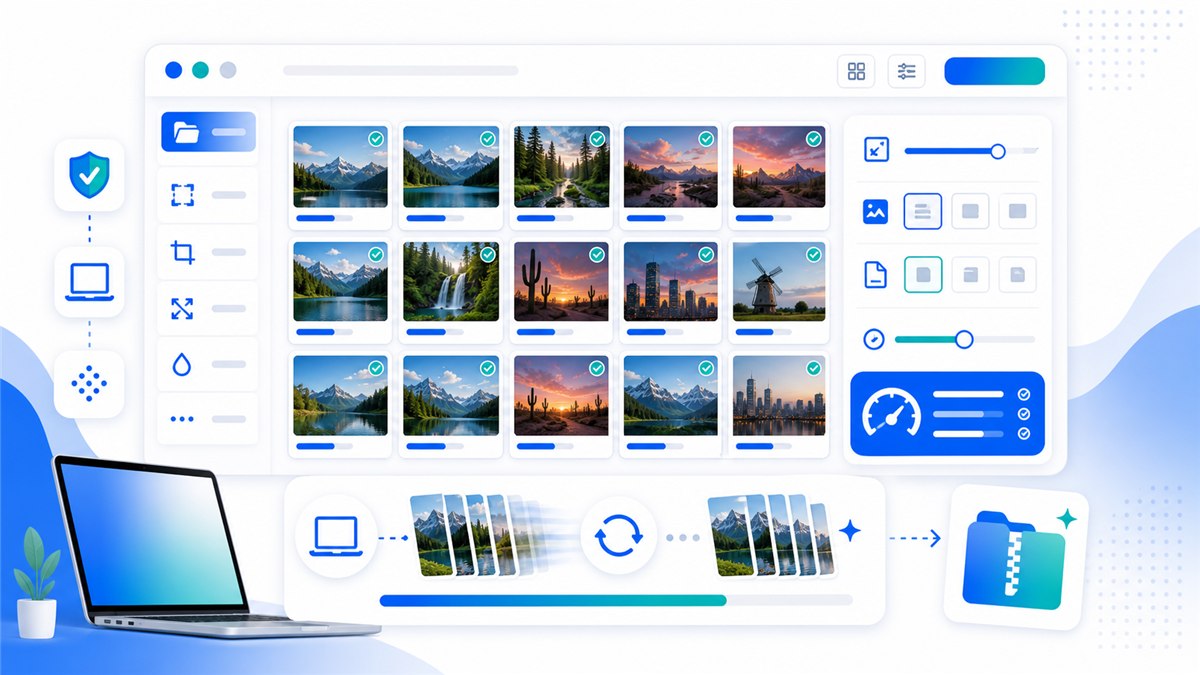
Der schnellste Weg, Webbilder ohne Uploads stapelweise zu skalieren ist mehr als eine optische Anpassung. Es ist ein sauberer Prozess, um ein Bild für einen konkreten Zweck vorzubereiten und Kontrolle über Qualität, Dateigröße, Format und Datenschutz zu behalten.
Einleitung
Mit Resizo Bulk Image Resizer beginnt der Workflow beim Ziel: Webseite, Formular, E-Mail, Shop, Social Media oder vertrauliches Dokument. Danach legst du Abmessungen, Format und Qualität fest.
Was bedeutet dieses Thema?
Der wichtigste Vorteil ist die Verarbeitung im Browser bei unterstützten Aufgaben. Für private Fotos, Dokumente oder Kundendateien reduziert das unnötige Uploads.
Warum es wichtig ist
Arbeite vom Original, behalte das Seitenverhältnis bei, skaliere kleine Bilder nicht künstlich hoch und exportiere nur einmal. Für Webbilder eignen sich WebP oder JPEG, für Transparenz und scharfe Screenshots oft PNG.
Wichtige Vorteile
- You reduce wasted upload time because fast no-upload bulk resizing happens before the file reaches a website, form, or CMS.
- You make the output predictable: exact dimensions, sensible file size, and a format that fits the destination.
- You protect the original image by exporting a separate optimized copy instead of editing the only version you have.
- You avoid common quality damage such as stretched aspect ratios, repeated compression, and unnecessary upscaling.
- You create images that are easier for users to download and easier for search engines to understand when combined with good filenames and alt text.
Schritt-für-Schritt-Anleitung
- Create a folder with originals and do not overwrite it. Work from copies only if the image set is business-critical.
- Open Resizo Bulk Image Resizer and choose the batch workflow that matches the task: resize, compress, convert, rename, crop, or watermark.
- Set the output width or preset before adding many files. For web images, 1200-1600 px wide works for most content pages.
- Choose WebP for modern web publishing, JPEG for broad compatibility, and PNG only when transparency or crisp UI detail matters.
- Set quality once, then test five representative images before exporting the whole folder.
- Use a naming pattern that includes purpose or size, for example product-blue-1200.webp or blog-hero-1600.webp.
Best Practices
Typische Fehler sind Uploads sensibler Fotos ohne Prüfung der Bedingungen, zu starke Komprimierung, verzerrte Maße und das zu frühe Löschen der Originale.
- Start from the highest-quality original you have. Resizing a bad copy usually amplifies blur and compression blocks.
- Set dimensions before quality. Pixel count is usually the biggest driver of file size.
- Use one export pass. Reopening and recompressing the same output again and again causes visible damage.
- Keep a small test set with different image types: portrait, product, screenshot, dark photo, and transparent graphic.
- Use descriptive names such as resized-passport-photo.jpg or product-main-1200.webp instead of IMG_4829-final-final.jpg.
Häufige Fehler
Für Teams lohnt sich ein Preset-Blatt mit Zielbreite, Format, Qualität, Dateinamen und Prüfschritten. So entstehen konsistente Exporte.
- Uploading sensitive photos to a tool before checking how the service processes and stores files.
- Forcing a fixed width and height that distorts people, products, logos, or documents.
- Upscaling a small source image and expecting true detail to appear. Upscaling can enlarge pixels, but it cannot recreate missing information.
- Using PNG for every photo. PNG is excellent for transparency and sharp graphics, but photos often become unnecessarily large.
- Ignoring the final use case. A print-quality master and a fast web preview are different files with different requirements.
Fortgeschrittene Tipps
Praxisbeispiel: Ein 4-MB-Handyfoto kann oft unter 700 KB landen, wenn es zuerst auf 1600 px Breite skaliert und danach mit ausgewogener Qualität exportiert wird.
- Create two exports for important web assets: a 1600 px master for large screens and a smaller 800 px version for thumbnails or cards.
- For ecommerce, make a consistent crop and background part of the process before compression. Visual consistency often matters as much as file size.
- For screenshots, test PNG and WebP. Text-heavy screenshots can look worse if compressed like ordinary photos.
- For forms with strict KB limits, resize dimensions first, then lower quality gradually in small steps.
- For private workflows, load the tool, disconnect from the internet, and complete local processing after the page is open.
Praxisbeispiele und Anwendungsfälle
| Scenario | Problem | Workflow |
|---|---|---|
| Job application | A phone photo is 5.8 MB but the portal allows 500 KB. | Resize the longest side to 1200 px, export JPEG at 78 quality, and check facial detail. |
| Online store | Thirty product images are different sizes and too heavy. | Batch resize to a consistent square canvas, export WebP, and keep originals archived. |
| Blog publishing | A hero image is 4032 px wide and slows the page. | Resize to 1600 px wide, export WebP, and add a descriptive filename and alt text. |
| Before | Action | Result | Why |
|---|---|---|---|
| Phone photo, 4032 x 3024, 4.8 MB | Resize to 1600 px wide and export WebP/JPEG at 80 quality | Often 250-700 KB | Best for blogs, portfolios, and basic web uploads |
| PNG screenshot, 2880 px wide, 2.4 MB | Resize to display size and test PNG vs WebP | Often 300-900 KB | Keeps UI text readable while removing oversized pixels |
| Product image set, mixed dimensions | Batch resize to consistent canvas and rename files | Consistent gallery assets | Improves UX and avoids layout jumps |
Empfohlene externe Quellen
- MDN HTMLCanvasElement.toBlob - Explains how browser canvas exports image blobs, formats, and quality settings.
- web.dev Learn Images - A practical reference for web image formats, responsive images, and performance.
- Google Image SEO Best Practices - Google guidance for discoverable images, alt text, structured data, and fast image pages.
Häufig gestellte Fragen
What is The Fastest Way to Bulk Resize Images for the Web With No Uploads?
The Fastest Way to Bulk Resize Images for the Web With No Uploads is a practical workflow for bulk resize many web images quickly without uploading them. The goal is to create a smaller or better-fitted image while preserving the details that matter for the destination.
Can I do this with Resizo Bulk Image Resizer?
Yes. Resizo Bulk Image Resizer is designed for this exact workflow. You can choose dimensions, format, and quality settings, then download an optimized copy without changing the original.
Does Resizo upload my images?
For supported Resizo browser tools, the image is processed locally in your browser. That means the original file stays on your device during resizing, compression, conversion, and preview.
What format should I choose?
Use WebP for most modern web pages, JPEG for broad photo compatibility, and PNG when you need transparency, sharp UI graphics, or exact screenshot detail.
Will reducing file size always reduce quality?
Not always in a visible way. If you reduce unnecessary pixels first and use sensible quality settings, the file can become much smaller while looking the same at normal viewing size.
What quality setting is best?
For photos, start around 75-85 and inspect the result. For screenshots or graphics, test PNG and WebP because ordinary photo compression can make text and edges look rough.
Can I process many images at once?
Yes, especially for batch workflows. The practical limit depends on your browser and device memory because local tools use your own machine rather than a server queue.
Should I delete the original after exporting?
No. Keep the original until the final image has been uploaded, reviewed, and approved. Store optimized exports in a separate folder so you can regenerate them later.
How do I avoid blurry output?
Do not upscale small files, keep aspect ratio locked, export from the original, and check the result at 100 percent zoom before using it in production.
Is this good for SEO?
Yes when combined with fast file sizes, descriptive filenames, useful alt text, proper HTML image elements, and relevant page content near the image.
Fazit
Fazit: Starte beim Einsatzzweck, schütze das Original und prüfe die Ausgabe. Resizo macht diesen Workflow schnell, kontrollierbar und datenschutzfreundlich.
Der schnellste Weg, Webbilder ohne Uploads stapelweise zu skalieren
Praktischer Resizo-Leitfaden zu der schnellste weg, webbilder ohne uploads stapelweise zu skalieren mit Schritten, Fehlern und No-Upload-Workflow.
Resizo kostenlos testen