YouTube Thumbnail and Banner Size 2026 - Exact Pixels
Use this updated guide to create YouTube thumbnails, channel banners, and profile images that upload cleanly, avoid mobile cropping, and stay sharp after compression.
Quick Answer
The best YouTube thumbnail size is 1280 x 720 px. Use a 16:9 JPG, PNG, GIF, or BMP file under 2 MB. For a YouTube channel banner, use a 2560 x 1440 px canvas and keep text or logos inside the center 1235 x 338 px safe area.
A YouTube image can look perfect in your design app and still fail in the upload screen. The usual reasons are simple: the file is too large, the aspect ratio is wrong, the banner text sits outside the safe area, or the thumbnail was exported in a format that gets compressed badly.
This guide gives you the exact YouTube thumbnail and banner sizes to use in 2026, plus a practical workflow for resizing with Resizo. It is written for creators, agencies, social media managers, educators, and small businesses that need publish-ready images without installing design software.
What is the YouTube Thumbnail and Banner Resizer?
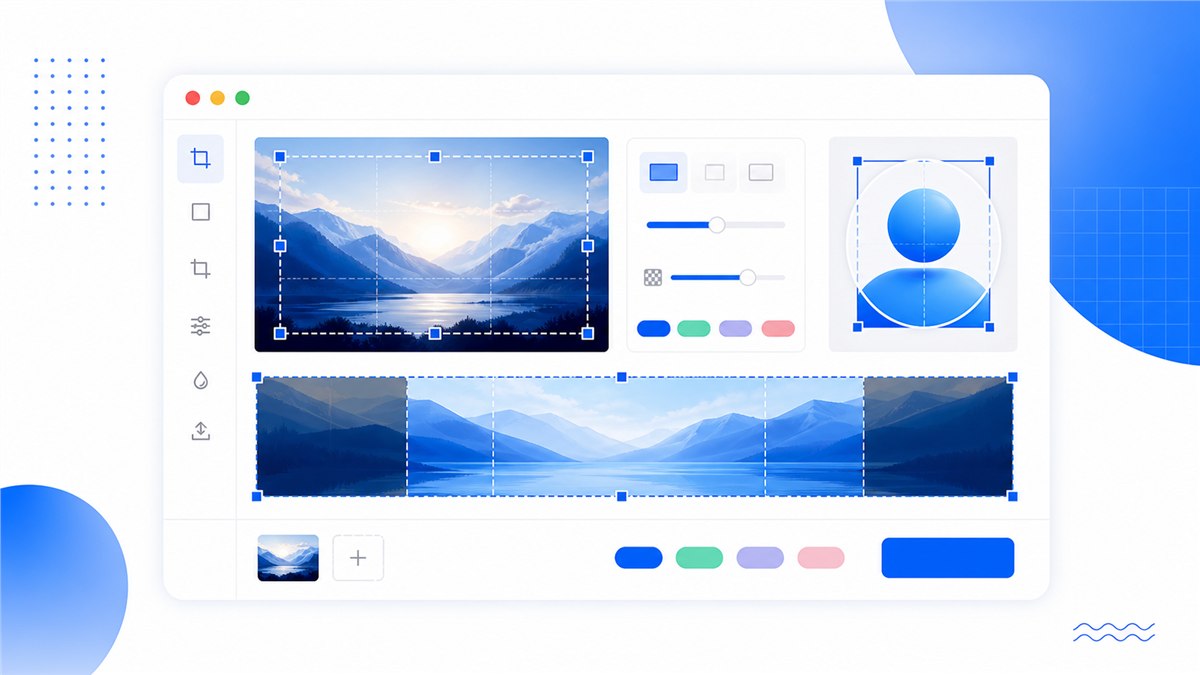
The YouTube Thumbnail and Banner Resizer is a browser-based Resizo tool that crops and exports images to YouTube-ready dimensions: 1280×720 px for video thumbnails, 2560×1440 px for channel banners, and 800×800 px for profile images. It works by processing the image locally with the browser's Canvas API, so a photo, screenshot, channel artwork file, or design draft is resized on your own device without being uploaded to a remote conversion server — a real advantage when the asset is an unpublished campaign graphic or a personal photo. You pick the YouTube format, adjust the crop against the correct aspect ratio (16:9 for thumbnails and banners, 1:1 for profile images), preview the result, and download a file that fits YouTube's limits, including the 2 MB cap on custom thumbnails. No account, watermark, or software install is required, and the tool is free.
The main benefit is speed with control. Instead of guessing pixel sizes, you choose the YouTube format, adjust the crop, preview the result, and download the final image. Resizo runs locally in the browser, so personal photos and unpublished campaign assets do not need to be uploaded to a remote conversion server.
Why use the correct YouTube image size?
Using the correct YouTube image size prevents blurry text, awkward cropping, and rejected uploads. The reason is mechanical: YouTube takes one uploaded file and rescales it for many surfaces — search results, recommendations, channel pages, mobile feeds, TV apps, embedded players, and notifications — so any dimension error is magnified somewhere. A thumbnail uploaded below the recommended 1280×720 px gets upscaled and turns soft on TV screens; a thumbnail over the 2 MB file limit is rejected outright; a channel banner that ignores the centered 1235×338 px safe area has its logos and text cropped off on mobile devices. Exporting at 1280×720 for thumbnails and 2560×1440 for banners before you upload avoids all three failure modes. Resizo's YouTube resizer applies these dimensions as ready-made presets and processes the file locally in the browser, so no upload to a third-party server is ever needed.
Correct sizing helps in four important ways:
- Better click-through rate: a sharp 16:9 thumbnail is easier to read in recommendations and search.
- Cleaner channel branding: a banner with safe-area discipline looks intentional on desktop, mobile, and TV.
- Fewer upload errors: matching YouTube's dimensions and file limits avoids repeated export attempts.
- Faster publishing: presets remove the need to remember every pixel requirement.
Recommended YouTube image sizes for 2026
Use these dimensions as your production checklist before uploading to YouTube Studio.
| Asset | Recommended size | Aspect ratio | Format | Limit | Best practice |
|---|---|---|---|---|---|
| Video thumbnail | 1280 x 720 px | 16:9 | JPG, PNG, GIF, BMP | 2 MB max | Keep text large and centered. |
| Channel banner | 2560 x 1440 px | 16:9 canvas | JPG or PNG | 6 MB max | Use 2048 x 1152 px as the minimum upload size. |
| Banner safe area | 1235 x 338 px | Centered zone | Not an upload file | N/A | Put logos, faces, and text here. |
| Profile image | 800 x 800 px | 1:1 | JPG or PNG | Keep lightweight | Design for a circular crop. |
YouTube thumbnail size
The recommended YouTube thumbnail size is 1280 x 720 px. The aspect ratio should be 16:9, the minimum width is 640 px, and the custom thumbnail file must be under 2 MB.
For most videos, export the thumbnail as JPG at a high quality setting. JPG usually creates a smaller file than PNG for photos, faces, and screenshot-heavy designs. Use PNG when the thumbnail has flat illustrations, crisp text, or transparent design elements, but always check the final file size before upload.
YouTube channel banner size
For a channel banner, design on a 2560 x 1440 px canvas. YouTube's upload flow accepts a minimum of 2048 x 1152 px, but the larger 2560 x 1440 canvas gives you more room for TV and high-resolution displays.
The part that matters most is the safe area. Keep logos, taglines, faces, dates, and calls to action inside the center 1235 x 338 px. Anything outside that center zone can be cropped differently on phones, tablets, desktop screens, and TV apps.
JPG vs PNG for YouTube uploads
For thumbnails, JPG is usually the most reliable choice. It keeps photographic designs small, uploads quickly, and stays under YouTube's 2 MB thumbnail limit with less effort. If your thumbnail uses a face, product photo, game screenshot, camera still, or colorful background, export JPG first and inspect the result at a small size.
PNG is useful when the image is mostly flat graphics, UI screenshots, bold typography, or a logo-based composition. The tradeoff is file size. A PNG thumbnail can look crisp, but it may cross the 2 MB limit if the design has gradients, noise, photos, or many colors. For channel banners, PNG can be a good choice when the banner contains a logo and clean text, while JPG is better for photo-heavy channel art.
Do not choose a format only because it sounds higher quality. The best YouTube image file is the one that meets the pixel size, stays under the file limit, and still looks clear after upload. That is why a practical workflow is to export once, open the downloaded file, zoom out to mobile size, and check whether the text and main subject still read instantly.
Designing for mobile, desktop, and TV
A YouTube banner is not one fixed rectangle in the real world. Mobile viewers may see only the center of the design, desktop viewers see a wide crop, and TV apps can show more of the full 16:9 artwork. This is why safe-area planning matters more for banners than for thumbnails.
Start the banner with a quiet full-size background, then place important information in the middle safe area. Your channel name, upload schedule, tagline, and logo should work even if the outer edges disappear. Use the left and right sides for texture, photography, color, or supporting graphics rather than critical text. If you cannot read the center area in two seconds, the banner is trying to do too much.
For thumbnails, the challenge is different. The full 16:9 image is usually visible, but it is often shown very small. Use one main subject, one emotional or visual hook, and very few words. If a thumbnail needs a full sentence to make sense, it will usually underperform when shown beside dozens of competing videos.
Step-by-step guide: resize images for YouTube with Resizo
- Open the Resizo YouTube image resizer.
- Drag your image into the upload area or choose a local file.
- Select the target format: thumbnail, channel banner, or profile image.
- Use the crop controls to keep the main subject centered.
- For banners, keep all text and logos inside the safe area.
- Choose JPG for photographic thumbnails and PNG for graphics with sharp text.
- Download the resized image and upload it to YouTube Studio.
Best practices for YouTube thumbnails and banners
- Preview small: check your thumbnail at a tiny size. If the title is unreadable, simplify it.
- Use contrast intentionally: bright subject separation helps the thumbnail stand out in crowded feeds.
- Avoid edge-dependent text: mobile layouts and overlays can hide details near the border.
- Keep banners quiet: a channel banner should communicate identity, not carry an entire poster's worth of text.
- Export once, then inspect: open the downloaded file and confirm the dimensions before uploading.
Common mistakes
- Using a square thumbnail: YouTube thumbnails should be 16:9, not 1:1.
- Putting banner text outside the safe area: it may look fine on desktop and vanish on mobile.
- Uploading a huge PNG thumbnail: it can exceed the 2 MB limit quickly.
- Designing only for desktop: many viewers see your image first on a phone.
- Ignoring the circular profile crop: corners of a square logo may disappear when YouTube displays it as a circle.
Conclusion
For 2026, keep the core YouTube image sizes simple: 1280 x 720 px for thumbnails, 2560 x 1440 px for channel banners, 1235 x 338 px for the banner safe area, and 800 x 800 px for profile images. When you use these dimensions before uploading, your channel looks cleaner and your publishing workflow gets faster.
Use Resizo when you want the practical version of that checklist: choose a YouTube preset, crop the image, export the right format, and keep your files private in the browser.
Images never leave your device
Resize YouTube images privately now
Open the YouTube resizer, pick a preset, crop locally, and download. No uploads. No waiting.
Open YouTube ResizerFAQ
- What is the best YouTube thumbnail size in 2026?
- Use 1280 x 720 px with a 16:9 aspect ratio. YouTube requires a minimum width of 640 px and a maximum custom thumbnail file size of 2 MB.
- What is the YouTube channel banner size in 2026?
- Use a 2560 x 1440 px canvas for best results across devices. YouTube accepts at least 2048 x 1152 px and recommends keeping text and logos inside the center 1235 x 338 px safe area.
- What is the YouTube banner safe area?
- The safest center area for banner text and logos is 1235 x 338 px. Anything outside this zone can be cropped on phones, TVs, and narrow desktop layouts.
- How do I resize images for YouTube for free?
- Open Resizo's YouTube image resizer, add your image, choose the thumbnail, banner, or profile preset, adjust the crop, pick JPG or PNG, and download the resized file in your browser.
Related reading
Google Play Feature Graphic: Size, Safe Area & Why It Gets Rejected
1024 × 500, no alpha channel, under 15 MB. The exact specs, the safe area, and the six reasons Play Console bounces uploads.
Read articleWhy You Should Never Upload Private Photos to Online Resizers
Most online image tools ask you to trust an invisible server. That is the problem. If the …
Read articleThe Fastest Way to Bulk Resize Images for Web: No Uploads Required
Uploading, waiting, and downloading again is the slow part. A local workflow changes that.…
Read articleHow to Resize Image Online Free – No Software Needed
Resizing an image used to mean downloading software or waiting on a slow upload. Today you…
Read article