A Google Play feature graphic is 1024 × 500 pixels — a 24-bit PNG or JPEG with no alpha transparency, under 15 MB. That one sentence answers the question most people arrive with. What it does not explain is why so many correctly-sized uploads still get bounced by the Play Console, or how to design a banner that survives being letterboxed, cropped tight, and covered by a play button before a single user sees it. This guide covers the specs, the rejection causes in order of how often they actually happen, and the design rules that keep a graphic readable at thumbnail size.
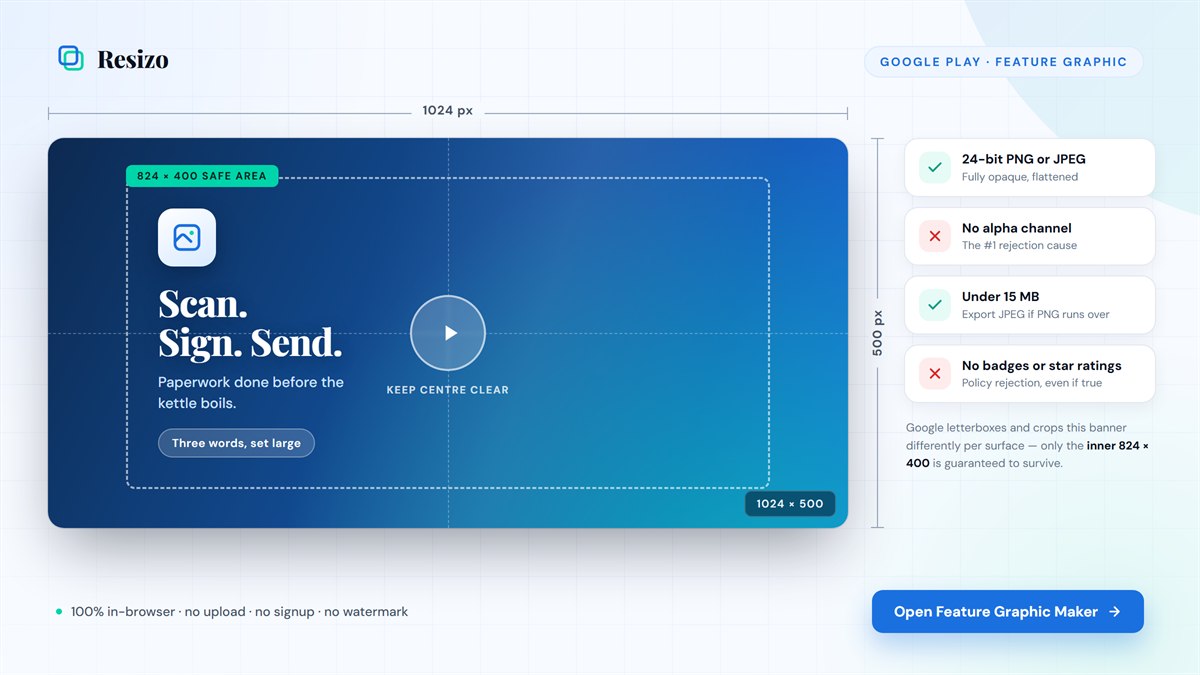
Quick answer: the feature graphic size and format rules
| Spec | Requirement |
|---|---|
| Dimensions | 1024 × 500 px, exactly |
| Format | 24-bit PNG or JPEG |
| Transparency | None — the file must be fully opaque |
| Maximum file size | 15 MB |
| Safe area | 824 × 400 px, centered |
| Required to publish? | Yes — the Play Console will not accept a submission without one |
Those six rows are the whole specification. The rest of this page is about the two things the specification does not tell you: which rule breaks most often, and how to design inside 1024 × 500 so the result still works after Google crops it.
Skip the specs and just make one
The canvas is already 1024 × 500, the safe-area guide is one toggle away, and the export is opaque by construction — so an alpha channel can never sneak in.
Runs entirely in your browser — no signup, no upload, no watermark, no export limit.What a feature graphic actually is
The feature graphic is the wide banner at the top of your app's Google Play listing. It also appears in editorial collections, in some search and browse surfaces, and — if you attach a promo video — it becomes that video's cover frame, with a large circular play button composited directly over the middle of it.
It is not an optional flourish. It is a required field in the Play Console's main store listing, and a submission will not go through without one. That is why so many developers meet it at the worst possible moment: at the end of a release, with the build ready and the store listing blocking the rollout.
It is also the asset people most often confuse with the other two required graphics. They use three different canvases and none can substitute for another:
- Feature graphic (1024 × 500) — the wide banner at the top of the listing.
- App icon (512 × 512) — the square mark shown in search results and next to your app name.
- Screenshots (1080 × 1920 for phones, 1920 × 1080 for tablets) — the scrollable in-app gallery further down the page.
Full size and format requirements for every store asset
If you are preparing a complete listing rather than just the banner, these are the canvases you need. Keep this table open while you export — mixing up two of these numbers is the second most common reason an upload fails.
| Asset | Size | Format rule |
|---|---|---|
| Feature graphic | 1024 × 500 | 24-bit PNG or JPEG, no alpha, ≤ 15 MB |
| App icon | 512 × 512 | 32-bit PNG, ≤ 1 MB |
| Phone screenshot | 1080 × 1920 | PNG or JPEG, 16:9 or 9:16, 320–3840 px per side, 2–8 required |
| Tablet screenshot | 1920 × 1080 | PNG or JPEG, 4 or more recommended for tablet and Chromebook surfacing |
| Apple iPhone 6.7″ | 1290 × 2796 | PNG or JPEG, no transparency |
| iPad 12.9″ | 2048 × 2732 | PNG or JPEG, no transparency |
The one line worth re-reading: 24-bit PNG or JPEG, no alpha. That single requirement causes more rejected feature graphics than every other rule on this page combined — which is why it gets its own section next.
Why feature graphics get rejected
When the Play Console bounces a feature graphic, it is usually not a design problem. It is a file problem — something in the export that you cannot see by looking at the image. Here is the full list, ranked by how often each one actually happens:
| Rejection cause | Why it happens | The fix |
|---|---|---|
| PNG carries an alpha channel | Design tools export PNGs with an alpha channel by default. Even when every pixel is fully opaque, the file format still has a transparency channel, and Play rejects that outright. | Flatten onto an opaque background before export, or export a true 24-bit PNG or a JPEG. |
| Wrong dimensions | Any size other than exactly 1024 × 500 — including near-misses like 1024 × 512, or a scaled multiple like 2048 × 1000. Play does not resize it for you. | Design at 1024 × 500 from the first minute rather than resizing at the end. |
| File over 15 MB | Uncompressed PNG exports from design tools cross this line easily, especially with photographic backgrounds. | Export as JPEG, or run the PNG through a PNG compressor first. |
| Store badges in the artwork | A “Get it on Google Play” badge, an App Store badge, or an Editors’ Choice mark. Google reserves these marks for its own UI. | Remove them. The store renders its own badges around your graphic. |
| Ratings, stars, or download counts | Banned by metadata policy even when the numbers are completely real and current. | Leave all performance metrics out of the artwork. |
| Text cut off by cropping | Not an automatic rejection, but it fails quality review and looks broken on the surfaces that crop tighter. | Keep every word inside the safe area described below. |
The alpha-channel problem deserves the extra attention because it is invisible on your own machine. The file opens normally in every preview app, looks exactly as designed, and reports the right dimensions. The problem lives in metadata that most image viewers never show you. Checking it manually means inspecting the PNG colour type — which is not a reasonable thing to ask of someone shipping a release.
The reliable fix is structural rather than procedural: export from a tool that produces an opaque file by construction, so there is no path to an accidental alpha channel and nothing to remember. That is exactly how the Resizo feature graphic maker is built — the canvas always has an opaque background layer, and the export is a flat canvas render.
The 824 × 400 safe area, explained
Google does not always show your 1024 × 500 graphic intact. On the listing page it can be letterboxed. In editorial collections and some carousels it is cropped tighter. If you have attached a promo video, a large circular play button sits directly over the center. The graphic has to survive all three treatments.
The practical answer is a safe area: an inner region of 824 × 400 px, centered, roughly 100 px in from each edge. Everything that carries meaning — your headline, your logo, your one supporting visual — belongs inside it. Everything decorative — gradients, background texture, abstract shapes — belongs in the outer band, where losing it costs nothing.
The center deserves its own note. If you ever attach a promo video, the play button lands there. A logo placed dead center looks balanced in your design tool and disappears behind a play button in the store. Offsetting the lockup slightly — or building the composition around a clear center — costs nothing and removes the risk permanently.
Designing a feature graphic that survives Google's crops
Three or four words, set large
At the size Play actually renders this banner on a phone, it is often barely 360 px wide — roughly a third of its native resolution. Body copy vanishes completely at that scale. Treat the graphic like a poster rather than a slide: one short value proposition, a logo, one supporting visual. Nothing else fits.
Skip repeating your app name if it already appears in the listing text directly beneath the banner. Duplicating it spends your largest piece of visual real estate on information the user already has, and leaves no room for the reason they should care.
Contrast beats decoration
Store surfaces render on both light and dark backgrounds, directly beside competing thumbnails. Light type on a saturated field, or dark type on a pale one, stays readable at thumbnail size. Mid-tone gradients behind mid-tone text do not. Aim for at least a 4.5:1 contrast ratio between headline and background.
There is a fast sanity check for this: zoom your own preview down to 25% and look away, then back. If the headline is not instantly legible at that size, it will not be legible in the store either — and no amount of gradient polish will fix it.
Design for the crop, not for the canvas
A composition that only works at exactly 1024 × 500 is fragile. A composition where the message sits in the middle 824 × 400 and the edges carry atmosphere works at every crop Google applies. That is the entire difference between a banner that looks intentional across the store and one that looks broken on half the surfaces it appears on.
How to make a feature graphic in under five minutes
You do not need a design subscription or a Figma file for this. The Resizo feature graphic maker runs the canvas, the layers, and the export in your browser:
- Open the tool. The canvas is already set to 1024 × 500, so there is no setup step and no chance of designing at the wrong size.
- Pick a background. Solid, gradient, or a photo. Every option is opaque by construction, which closes off the alpha-channel rejection entirely.
- Add your headline and logo as layers. The built-in templates re-flow to fit whatever canvas you are on, so they work as a starting layout rather than a fixed frame.
- Turn on Show safe area. This draws the 824 × 400 guide on top of your design so you can confirm nothing important sits in the risky outer band or dead center.
- Export as PNG or JPEG. The download is a real canvas render at 1× or 2× — what you see is what uploads, at exactly 1024 × 500.
Because every operation runs client-side through the Canvas API, nothing you design is uploaded to a server. That matters more than it sounds for this particular asset: a feature graphic usually contains the name, positioning, and launch date of a product that has not been announced yet. Your work autosaves to your browser's local storage on your own device, not to an account.
If the finished file comes out over 15 MB, the PNG compressor fixes that without a re-export. Once the app is live and you need matching banners elsewhere, the social media image resizer reuses the same assets for Open Graph images, thumbnails, and platform headers.
Build it while you read
Open the editor in a second tab and follow the five steps below. Your work autosaves to local storage on your own device.
Runs entirely in your browser — no signup, no upload, no watermark, no export limit.Does the feature graphic actually affect downloads?
Yes — store visuals are among the strongest levers on listing conversion. A few benchmark figures are worth knowing before you treat the banner as a five-minute afterthought:
- The average Google Play store-listing conversion rate sits around 27.3% according to AppTweak's H1 2024 benchmark data — though it swings enormously by category, from roughly 1% for board games to over 60% for some business apps.
- Industry write-ups citing SplitMetrics and AppTweak 2025 data put the potential lift from icon optimization at up to 20–30%, and from screenshot changes at roughly 22–24% on Google Play specifically.
- Google Play has a native Store Listing Experiments feature for A/B testing graphics and text directly, and it reports impact on 1-day retention rather than installs alone — so a variant that attracts the wrong users does not read as a win.
- Top-ranked apps refresh their store visuals two to four times a year; top Google Play games do it as often as eight times a year, precisely because visual changes reliably move the conversion number.
None of those figures is feature-graphic-specific in isolation. They are evidence that the visual package as a whole — icon, banner, screenshots — matters more than most developers assume, and a reason to treat the banner as something worth iterating on rather than shipping once and forgetting. Benchmark data like this is also refreshed annually, so re-check the current numbers before quoting them in a deck.
Choosing a feature graphic maker
The tools in this space fall into three groups, and the right choice depends mostly on where the rest of your design work already lives.
| Kind of tool | Best when | The trade-off |
|---|---|---|
| Browser-only, store-specific (including Resizo) | You need one correct, opaque, exactly-sized file today without creating an account. | Fewer general-purpose illustration features than a full design suite. Resizo adds 22 real device frames for the screenshot side of the listing. |
| General-purpose design suites | You already build brand assets there and want the feature graphic to live beside them. | Not store-asset-specific: the canvas, the safe area, and the opaque-export rule are all things you have to set up and remember yourself. |
| Template marketplaces and AI generators | You want a starting layout and have no brand assets yet. | Free tiers commonly meter custom exports, watermark them, or cap them per day — check the current terms before you rely on one mid-release. |
If you already live in a full design suite for other work, using it here is perfectly reasonable — just set the canvas manually and flatten before export. If you simply need a correct file and would rather not think about colour types at all, a browser tool built specifically for this canvas is the shorter path. Resizo has no account, no watermark, and no export limit, and the export is opaque whether or not you remember the rule.
Common mistakes to avoid
- Designing at the wrong size and scaling at the end. Upscaling a smaller composition softens type and logo edges exactly where the store renders them smallest.
- Treating the 824 × 400 safe area as a suggestion. The crops are real, they vary by surface, and you never get to see which one a given user hit.
- Putting the logo dead center. Fine until you add a promo video, at which point the play button covers it.
- Writing a sentence instead of a phrase. If it takes more than a glance to read, it will not be read at all.
- Including badges, stars, or install counts. These are policy rejections, not style notes — real numbers are rejected the same as invented ones.
- Shipping it once and never revisiting it. The benchmark data above is a strong argument for treating the banner as testable, not final.
Pre-upload checklist
Run this before you open the Play Console. It takes under a minute and catches every rejection cause listed on this page:
- Dimensions read exactly 1024 × 500 — not close, exactly.
- The file is a JPEG, or a PNG with no alpha channel.
- File size is comfortably under 15 MB.
- All text and your logo sit inside the 824 × 400 safe area.
- Nothing important sits dead center, in case you add a promo video later.
- No store badges, star ratings, review counts, or install numbers anywhere in the artwork.
- The headline is still legible when the whole graphic is viewed at 25% zoom.
- You have the editable source saved somewhere, so the next iteration is not a rebuild.
Frequently Asked Questions
What size is a Google Play feature graphic?
1024 × 500 pixels, as a 24-bit PNG or JPEG with no alpha transparency, under 15 MB. The dimensions must be exact — Play does not scale a near-miss like 1024 × 512 for you, it rejects it.
What is the single most common reason a feature graphic gets rejected?
An alpha channel the designer did not know was there. Design tools add a transparency channel to PNG exports by default, even when every pixel in the image is fully opaque, and Play rejects the file on that basis alone. It is more common than a wrong-size upload because it is invisible in every normal image preview.
What is the feature graphic safe area?
An inner region of 824 × 400 px, centered — roughly 100 px in from each edge of the 1024 × 500 canvas. Google crops and letterboxes the graphic differently across store surfaces, so anything outside that inner box can be cut. Keep headlines and logos inside it and let decorative elements run to the edges.
Is a feature graphic mandatory to publish an app?
Yes. It is a required field in the Play Console's main store listing, and a submission will not go through without one. There is no way to publish and add it later, which is why it so often becomes a last-minute blocker at the end of a release.
Do I need a different feature graphic for tablets or the web store?
No. The feature graphic is a single 1024 × 500 asset used across every surface. Tablet-specific sizes apply to screenshots — 1920 × 1080 rather than 1080 × 1920 — not to the banner.
Can I put my app's star rating or download count in the graphic?
No. Store badges, review stars, ratings, and install counts are all banned by Google's metadata policy, even when the numbers are accurate and current. Google reserves those elements for the store's own interface, and including them is a policy rejection rather than a design note.
Does Resizo upload my design to a server?
No. The feature graphic maker runs entirely client-side through the browser's Canvas API, so the image data never leaves your device. Your work autosaves to your browser's local storage only. That matters for this asset in particular, since a feature graphic usually reveals the name and positioning of an unannounced product.
Is the Resizo feature graphic maker free?
Yes — free with no account, no watermark, and no daily export limit. There is no paid tier to upgrade to. The whole tool is static files served to your browser, which is why there is no cost to cover per export.
My PNG is over 15 MB. What should I do?
Either export as JPEG instead, or run the PNG through a compressor. Photographic backgrounds are the usual cause — they compress badly as PNG. Resizo's PNG compressor handles this in the browser too, so you do not need to re-export from your design tool.
How often should I update my feature graphic?
There is no fixed rule, but benchmark data suggests top-performing apps refresh store visuals two to four times a year, and top games considerably more. Pair any change with a Google Play Store Listing Experiment so you validate the new version against the old one rather than guessing.
Can I reuse the feature graphic as ad creative?
The dimensions will not match most ad formats directly, since 1024 × 500 is a fairly specific aspect ratio. The headline, palette, and logo lockup translate well though — you just re-export at whatever size the ad network requires.
Conclusion
The feature graphic specification is short: 1024 × 500, 24-bit PNG or JPEG, no alpha, under 15 MB. Nearly every rejection traces back to that third clause — a transparency channel nobody intended to add, invisible in every preview until the Play Console refuses the upload.
Get the file right and the design job is straightforward: three or four words set large, strong contrast, everything meaningful inside the 824 × 400 safe area, and nothing critical dead center in case a promo video ever lands on top of it. That is a five-minute asset once you know the constraints, and a recurring release-day blocker until you do.
Make your feature graphic now
Correct canvas, safe-area overlay, opaque export by construction. Free, no signup, and nothing leaves your browser.
Open Feature Graphic Maker